

Queues are per environment. A queue named
order-processing in development is a different queue from one with the same name in production.The queue list
The landing view lists every queue in the current environment, with live health that refreshes automatically: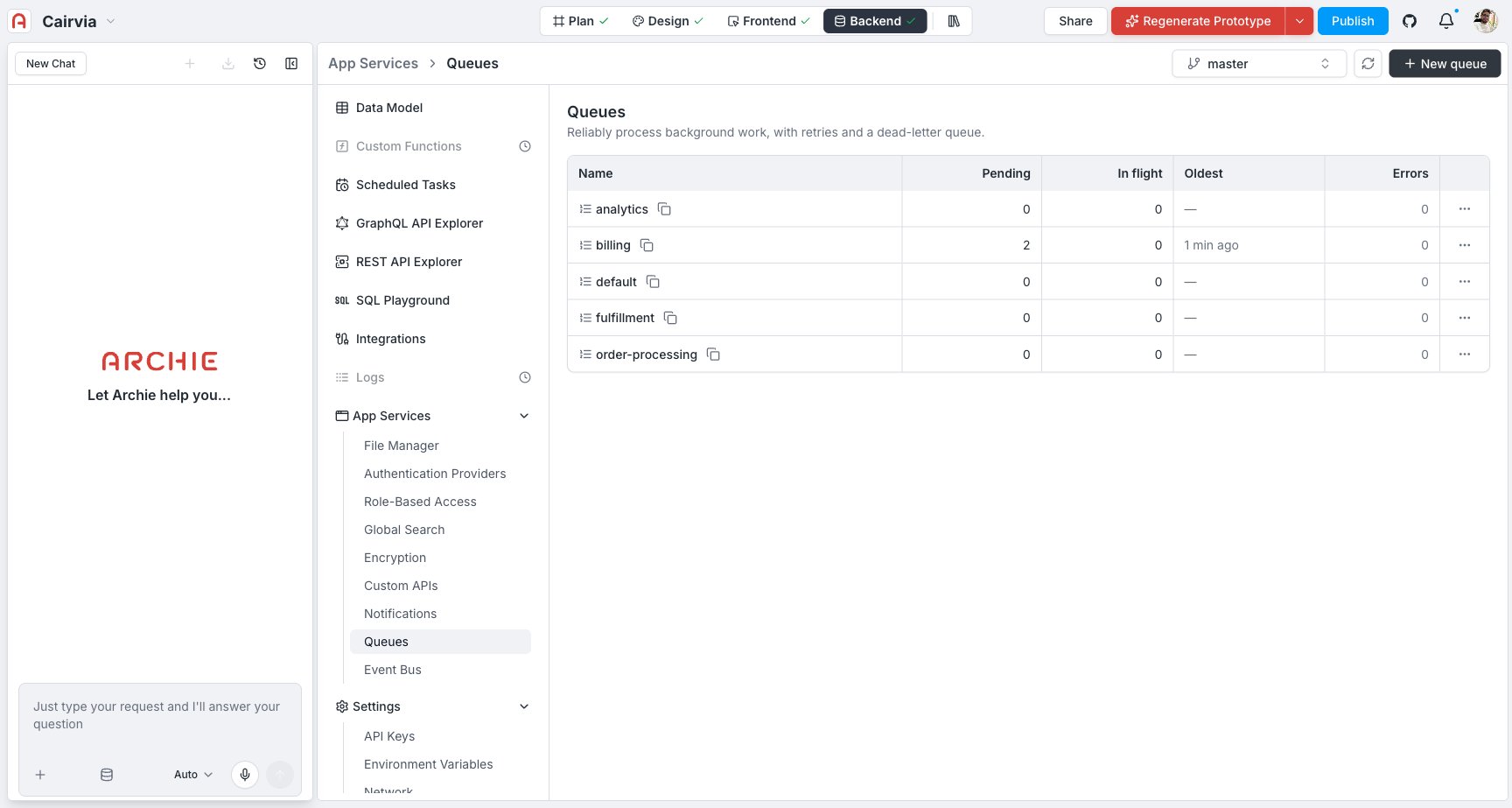
A steadily growing Pending count means messages arrive faster than your workers drain them — add workers or speed up processing. A growing Errors count means something is repeatedly failing — open the error list to investigate.
Create a queue
Creating a queue is meant to take about ten seconds — the only required field is the name.1
Click New queue
In the Queues panel, click New queue.
2
Name it
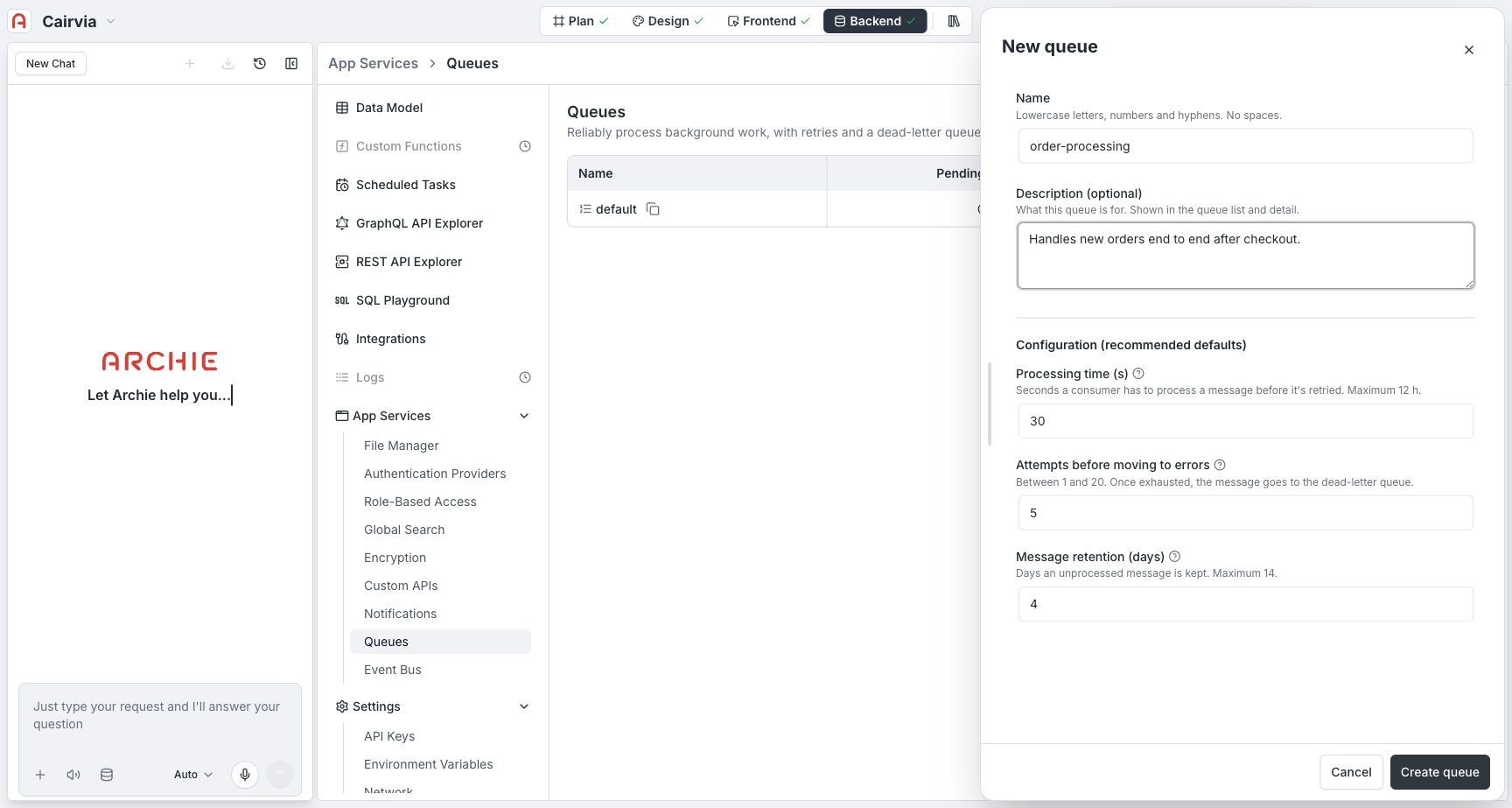
Type a name. Names are lowercase letters, numbers and hyphens, with no spaces (they become part of an internal address). If what you type contains other characters, the panel shows the cleaned-up version it will use, and warns you immediately if the name is already taken.
3
(Optional) Add a description
A short description of what the queue is for. It shows up in the queue list and detail view — useful once you have more than a couple of queues.
4
(Optional) Adjust the configuration
The Configuration (recommended defaults) section is pre-filled with sensible values. Change them only if you need to — see the table below.
5
Create the queue
Click Create queue. You land directly on the new queue’s detail view, ready to receive messages.
Settings, explained
Every setting has a safe default, shown under Configuration (recommended defaults). You can change them later from the queue’s Settings tab.The queue detail view
Click any queue to open its detail — creating a queue drops you here directly. It’s organized into tabs: Overview, Errors, Test, and Settings.Overview
Six stat cards — three from your configuration (Processing time, Retries, Retention) and three live (Pending, In flight, Failed) — plus an Oldest message line and a How to connect panel. The connect panel shows your project’s GraphQL endpoint with a copy button and ready-to-paste snippets for sending and receiving messages, with GraphQL as the default tab and REST (curl) as the second. This is the fastest path from “queue created” to “first message flowing”.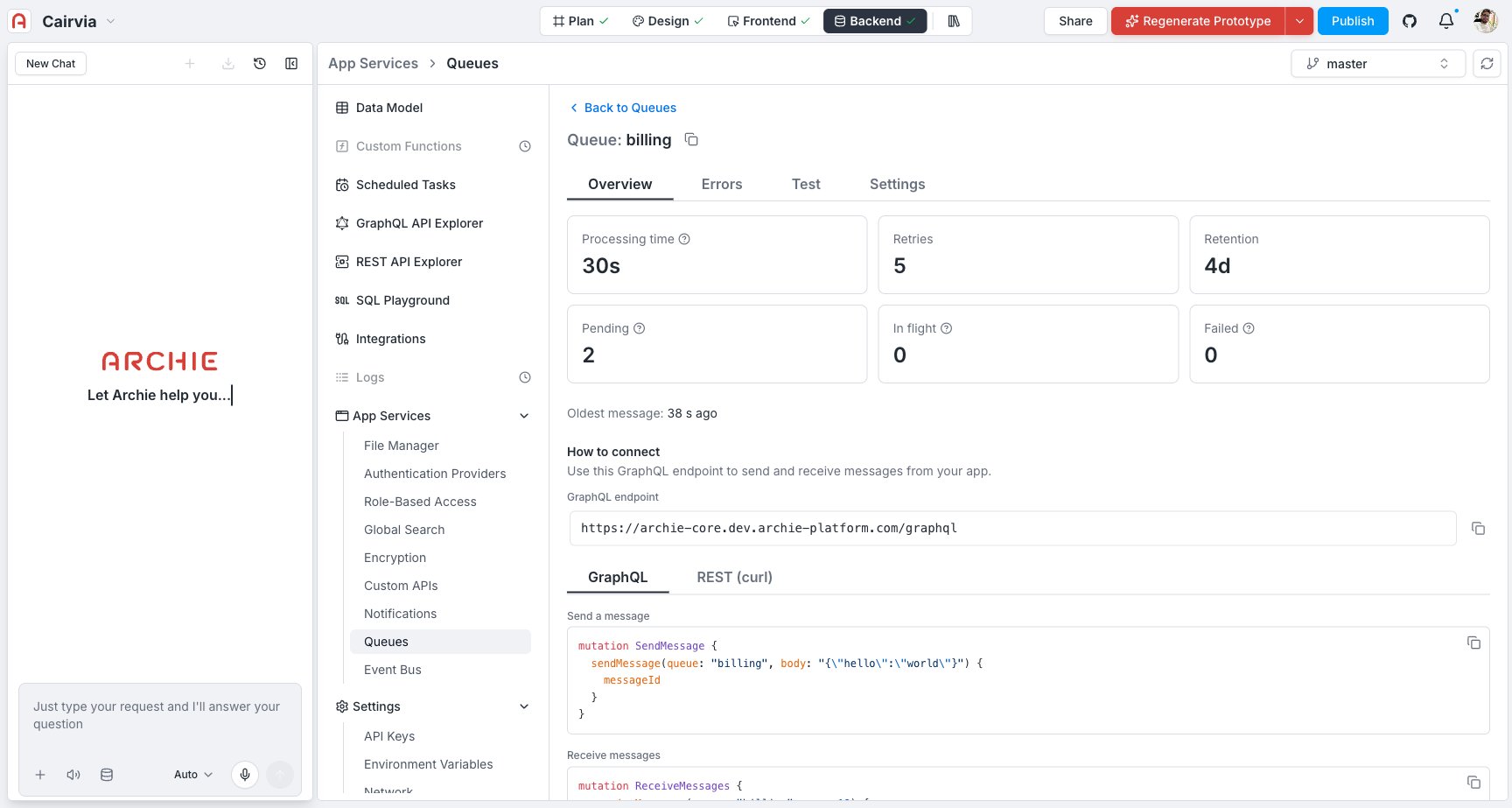
Errors (dead-letter queue)
Messages that exhausted their attempts land here so they’re never lost. The tab shows a Failed count and a single Retry all action — there is no per-message browser, so use this to confirm something needs attention and to recover once you’ve fixed the cause.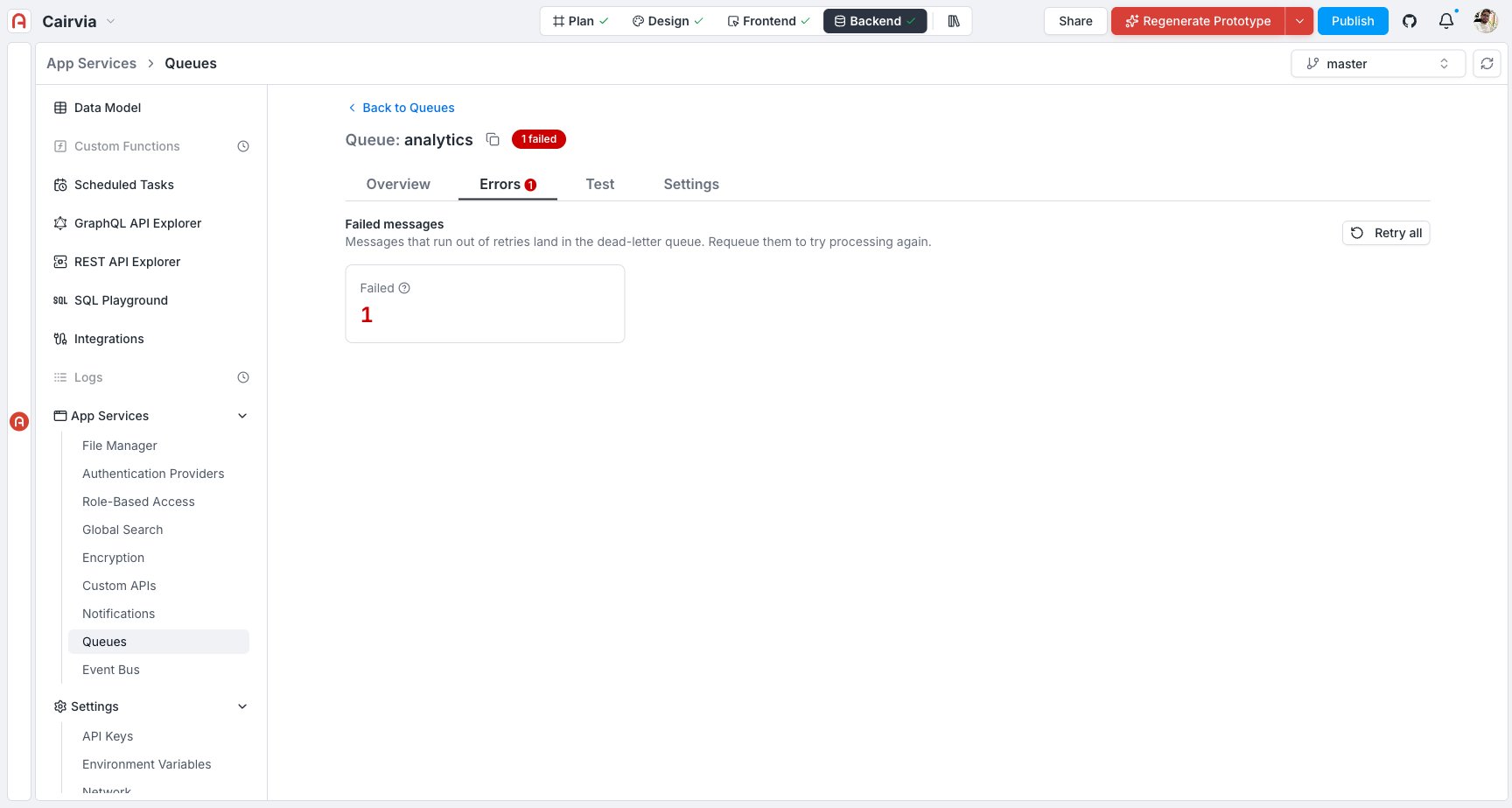
- Retry all — moves every failed message back to the main queue to be processed again. Use this after you’ve fixed the cause.
Test
Send a message by hand to confirm your worker consumes it:1
Write a JSON message
Use the JSON editor. It validates as you type and enforces a 256 KB limit with a live size counter.
2
(Optional) Add a dedup key
A dedup key suppresses accidental duplicates: sending the same key twice within a short window enqueues the message only once.
3
Send
Click Send. You’ll see confirmation that the message was enqueued and the Pending count tick up.
Settings
Change the description and the mutable settings (processing time, max attempts, retention), and find the danger zone to delete the queue. Deleting asks you to type the queue name and warns how many messages will be discarded.Connect your app to a queue
Everything the panel does is available through the GraphQL API, so your application code sends and processes messages the same way. The connect panel gives you copy-paste snippets; the examples below show the shape. Send a message.receiptHandle from the message you received:
receiveMessages → do the work → deleteMessage. If your worker crashes before deleteMessage, the message reappears after the processing time and is retried automatically.
You can also connect over REST — the connect panel’s second tab shows the equivalent
curl calls. GraphQL is the recommended default because it’s the same endpoint as the rest of your project’s API.Recover from failures
My Errors count is going up
My Errors count is going up
A message is failing every attempt. Open the Errors tab to confirm how many are stuck, and check your worker’s logic and logs. Once fixed, click Retry all to move the error list back into the main queue.
The same message seems to be processed twice
The same message seems to be processed twice
This is expected under “at least once” delivery. Make your worker idempotent (safe to run twice for the same input) — for example, key writes on the
orderId so a repeat is a no-op — and use a dedup key when sending to suppress accidental duplicate sends.Messages get retried while the worker is still running
Messages get retried while the worker is still running
Your job takes longer than the queue’s Processing time. Increase it on the Settings tab, or have the worker extend the window while it processes.
Pending keeps climbing and never drains
Pending keeps climbing and never drains
Messages arrive faster than they’re processed. Run more workers in parallel (they compete for the same queue safely), make each job faster, or both.
Next
Event Bus
Broadcast one event to many routes — including feeding one or more queues.
Using them together
Fan an event out to several queues and process each copy independently.